Your whole Mac,
one tap away.
Bloom puts a small glass button on the edge of your screen. Tap it, and every shortcut you reach for opens right where you are.
Launch price $4$7 · Pay once · 14-day money-back guarantee · macOS 14 or later
> add rate limiting to the checkout API
Reading src/api/checkout.ts…
Editing src/middleware/rateLimit.ts
Running npm test
● Working (esc to interrupt)
See it in 40 seconds.
The button, your agent and your voice. Real Bloom, nothing mocked up.
Tap. Pick. Done.
If you've used the floating button on an iPhone, you already know Bloom. It waits at the edge of your screen until you need it.
Tap the button
It rests on any edge or corner and fades back when you're not using it.
Pick an action
The menu blooms open with nine actions, always a full grid. All actions is one tap below them.
Bloom does the rest
It presses the shortcut or runs the action for you, and your app keeps focus.
It knows which app you're in.
Switch apps and the menu changes with you. Tabs at the top show which menu you're in, and your Mac menu is always the tab next to it. Fourteen apps come ready to go.
One button. The right buttons.
Tweak any preset or build a menu for any app on your Mac. Every menu fills to a full grid with what you use most, and All actions browses and searches everything, in plain words.
Two looks. Five moods.
Glass keeps it calm: white symbols on frosted keys with real depth. Colorful gives every action its own Liquid Glass tile, the material macOS 26 is built on. Both sit on one deep color you pick.
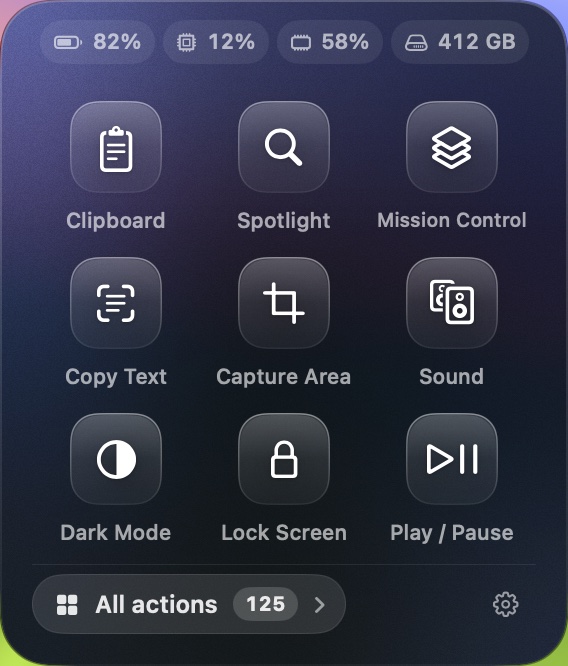
- Every tile on a screen gets its own color, never two alike
- Follows Reduce Transparency, Increase Contrast and Reduce Motion
- The background drifts slowly while the menu is open
Made for AI agents.
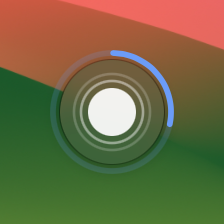
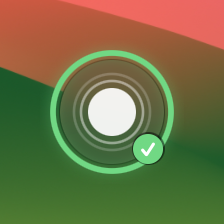
Agent Watch puts Claude Code on the button: it glows blue while the agent works, turns amber when it needs you, and shows a green tick when it's done. One tap jumps you back, whether it runs in a terminal, VS Code or the Claude app.

> add rate limiting to the checkout API
Reading src/api/checkout.ts…
Editing src/middleware/rateLimit.ts
● Working (esc to interrupt)
- EscStopInterrupt the agent mid-step
- ⇧⇥ModeCycle permission modes, including plan
- ⌃VPaste ImageDrop a screenshot into the prompt
- ⌃OTranscriptSee every tool call
- ⌃BBackgroundSend a long task to the background
- ⌃CCancelClear the prompt or exit
The menu doubles as an agent remote, with the keys above one tap away. Plus Capture Area and Dictation, so you can screenshot a bug and talk through the fix. Works in Terminal, iTerm2, Ghostty and Warp, with ready-made menus for the Claude and ChatGPT apps (where Codex lives) too.
The little tools you use all day.
Inside one button.
Clipboard history, text from anywhere on screen, your sound devices and AI writing open right inside the menu. No extra apps, no extra subscriptions.
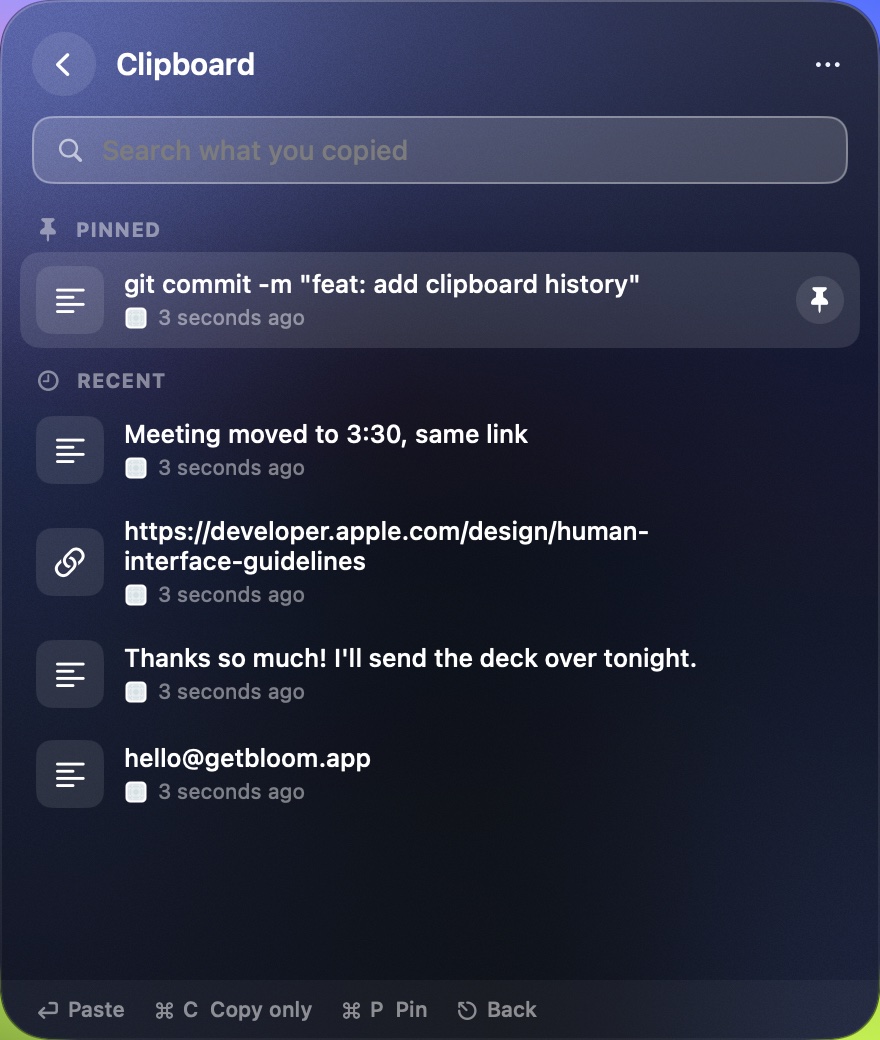
Clipboard history
The last 60 things you copied: text, links, images and files. Search, pin the ones you reuse, paste with a click.
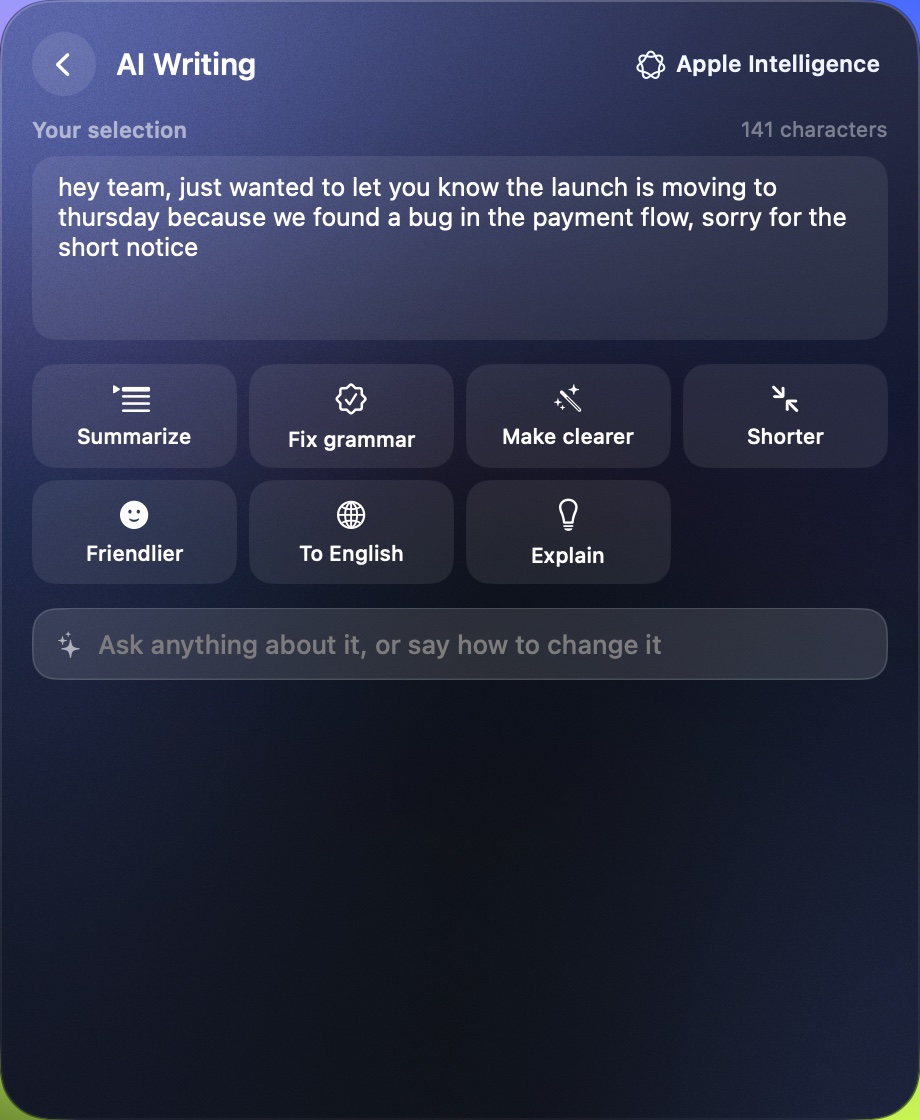
AI Writing
Select text in any app, then summarize, fix, shorten, translate or ask about it. Replace the selection in one click.
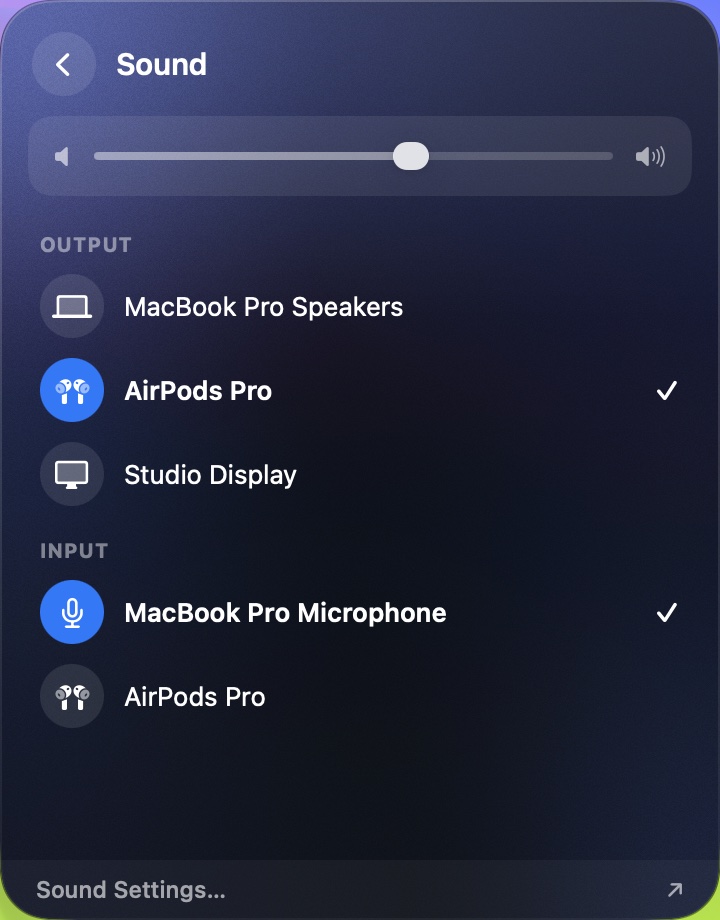
Sound, one tap away
Switch between speakers, AirPods and microphones, and set the volume, without Control Center.
Press and hold
Hold the button and your recent and most-used actions fan out in a ring. Slide to one and let go.
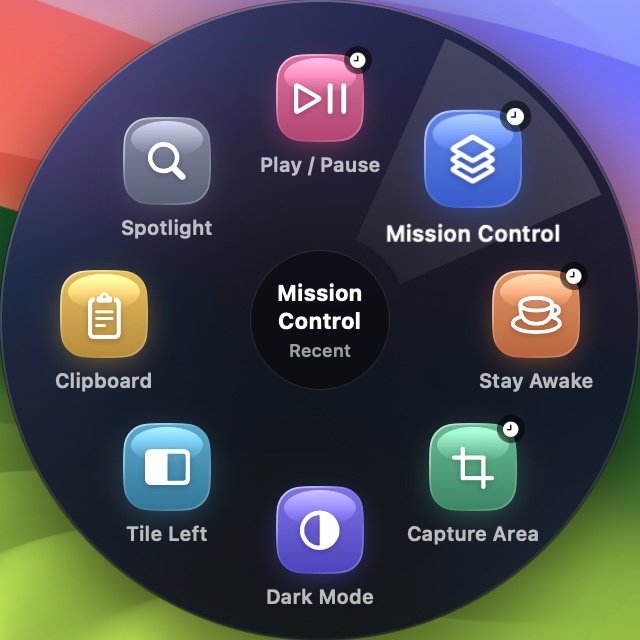
Copy Text
Drag over anything on screen to copy its text, even in images, videos and screen shares. QR codes too.
Scenes
Present, Meeting and Focus set up your Mac in one tap. Tap again and everything goes back as it was.
Housekeeping
Eject every disk, hide desktop icons, black out the screen to wipe it, and clear downloads older than a month.
At a glance
Battery, CPU, memory and free disk sit at the top of the menu. Tap one to see more.
One tap.
Not five clicks into Settings.
The things you reach for every day, without opening System Settings, hunting for the right pane or remembering a shortcut.
- Apple menu
- System Settings
- Privacy & Security
- Location Services
Automatic window tiling
One tap arranges every window on your screen into a clean, even grid. Another puts your two front windows side by side, and a third sends the front window to your other display.
- Tile All
- Side by Side
- Next Display
macOS doesn't let apps switch Location Services or Bluetooth off by themselves, so Bloom opens the exact pane instead. Restart, Shut Down and Log Out always ask first.
Make it yours.
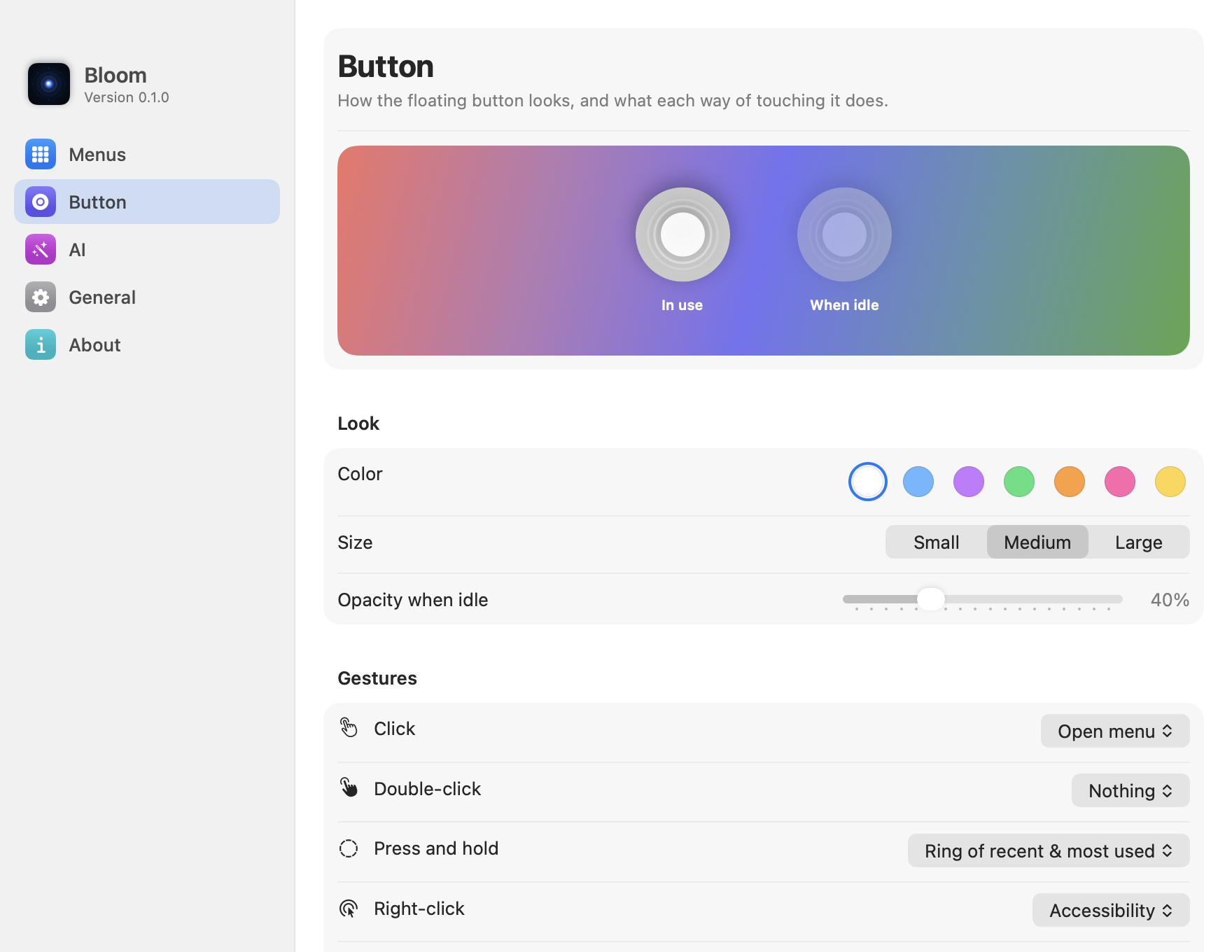
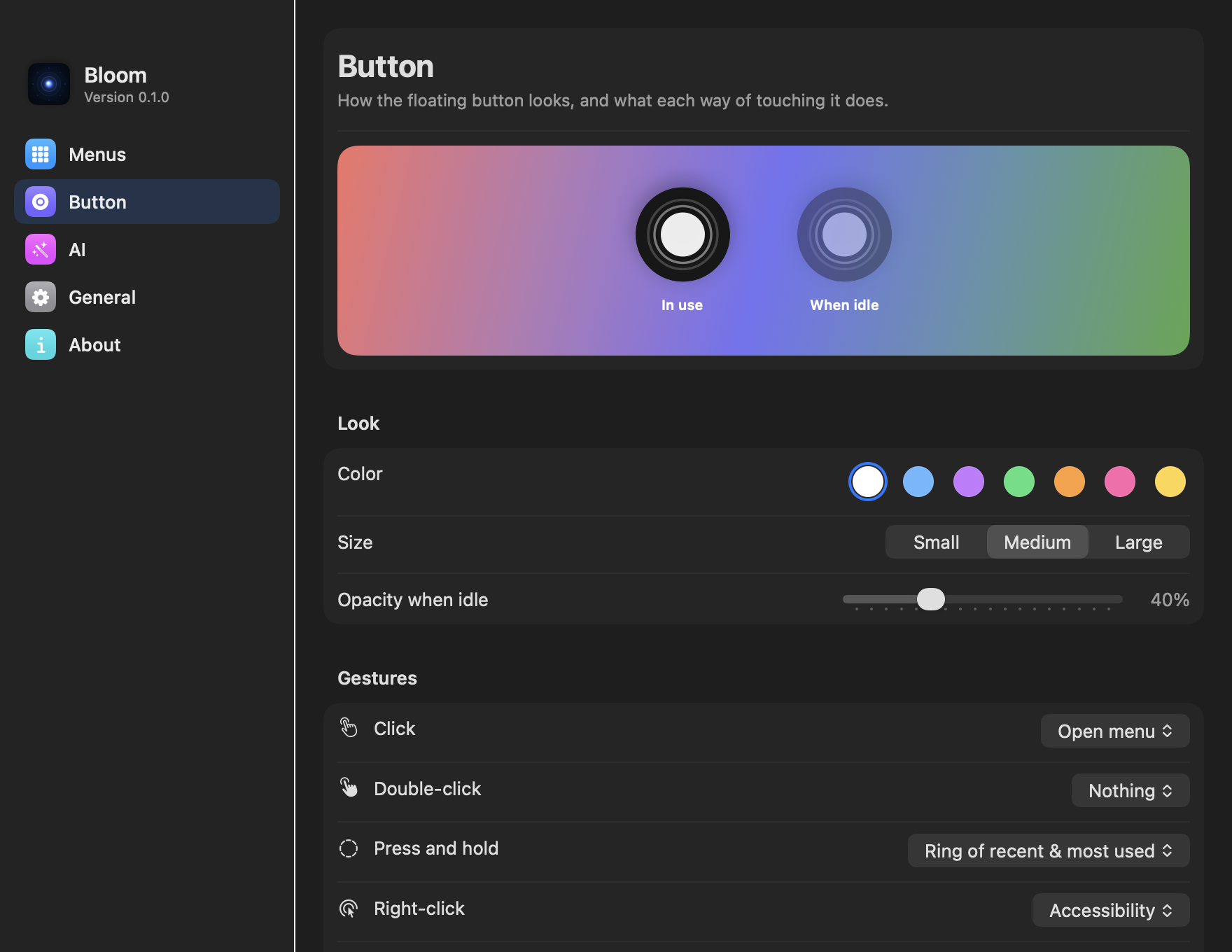
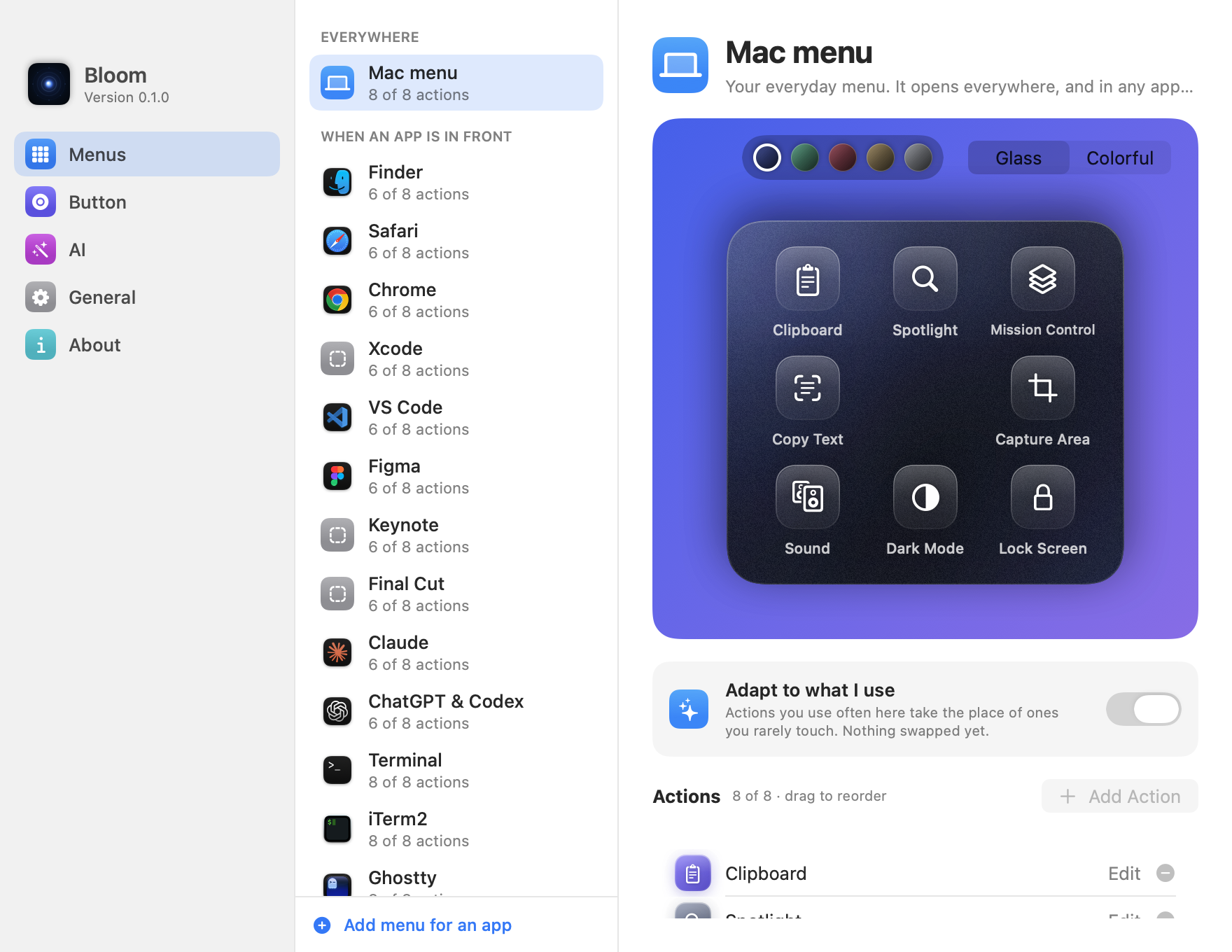
Pick a color, a size and a spot. Give every click, hold and scroll its own job. Changes here also apply to the Mac at the top of this page.
Seven tints, three sizes
And an idle opacity from barely there to bold.
Snaps to any edge
Drag it anywhere. Let go and it glides to the nearest edge or corner, clear of the menu bar and Dock, and remembers its spot on every display.
Settings you'll actually understand
Edit each menu on a live preview of the real thing. Click an action to change it, tap + to add one, and add a menu for any app in a click.
More than a tap
Six ways to use the button.
- ClickOpen menu
- Double-clickAny action
- HoldRecent ring
- Right-clickAccessibility
- ScrollVolume
- HotkeyYour keys
98 actions built in.
Nothing to memorize.
Everyday tools, scenes, windows, tabs, screenshots, media, Finder, power and Settings panes. In Bloom you can search them in your own words, like “make window bigger”.
Nothing built in matches. Record it as your own shortcut instead.
Set up in under a minute.
Four short screens, and the only permission Bloom asks for is the one macOS requires to press shortcuts for you.
Light to the touch.
Light on your Mac.
A native Swift app, tuned to move like iPhone's floating button and to stay out of the way the rest of the time.
Motion that feels right
The menu blooms out of the button on a soft spring and folds back just as quickly.
Never steals focus
The button floats above your windows without becoming the active app. Your cursor stays in your document.
Everywhere you work
Every Space, every full-screen app, every display.
Fades when idle
Four seconds after you use it, the button dims to the opacity you choose.
Import and export
Save your whole setup to a file and take it to your next Mac.
Starts with your Mac
Opens at login, lives in the menu bar, stays out of the Dock.
It works for you.
It doesn't watch you.
Bloom uses Accessibility permission to press shortcuts and move windows for you. Your clipboard history, screen text and settings stay on your Mac.
No account
Nothing to sign up for. Open it and go.
Works offline
Everything runs on your Mac. Only AI Writing with your own key goes online, to the provider you pick.
No keylogging
It never reads what you type. Copy Text only reads the area you drag over.
No analytics
No trackers, no usage data. Your setup stays on your Mac.
Pay once. Keep it forever.
No subscription. If it isn't for you, get a full refund within 14 days.
One-time payment for one Mac
- All 87 actions and 14 app menus, including AI agents
- Unlimited custom actions, folders and app menus
- Every color, size and gesture
- Free updates for Bloom 1.x
- 14-day money-back guarantee
Signed and notarized by Apple · macOS 14 or later
Prices in USD, taxes included. Launch prices rise to $7 and $10 later.
Free tools for Mac people.
Useful whether or not you use Bloom.
Mac Shortcut Finder
Every built-in macOS keyboard shortcut, searchable, with one-click copy.
Find a shortcutMenu Builder
Design your Bloom menu in the browser and import it straight into the app.
Build a menuKey Combo Viewer
Press any keys and get the Mac symbols, names and a copy-ready format.
Try itMenu Library
Ready-made menus for Figma, Photoshop, Slack, Zoom, Cursor and more, added in one click.
Browse menusQuestions, answered.
Is this like the floating button on iPhone?
That's the idea. Bloom brings the same tap-and-pick feel to the Mac, with actions that make sense on a Mac: Mission Control, window tiling, Spaces, screenshots and your own keyboard shortcuts.
Why does Bloom need Accessibility permission?
macOS only lets an app press shortcuts and move windows for you if you allow it in Privacy & Security. Bloom uses it to run the actions you pick. It never reads your keystrokes. How to allow it
Does AI Writing send my text anywhere?
With Apple Intelligence, nothing leaves your Mac. If you add your own Claude, OpenAI or Gemini key, the text you selected goes only to that provider, and the key stays in your Mac's Keychain. Bloom has no servers of its own.
Is clipboard history safe?
It's stored only on your Mac, keeps the last 60 items, and skips anything password managers mark as secret, like passwords from 1Password or Apple Passwords. You can pause or clear it any time.
Does it work in full-screen apps and across Spaces?
Yes. The button follows you to every Space and floats over full-screen apps.
What's the difference between the 1 Mac and 2 Macs licenses?
Only how many Macs you can activate. Both include every feature and free updates for Bloom 1.x. Launch prices are $4 and $6 and will rise to $7 and $10 later.
Can I add my own actions?
As many as you like. Record any keyboard shortcut, open an app or a link, run something from the Shortcuts app, or group actions into folders. Or sketch a menu with the free Menu Builder and import it.
Why isn't Bloom on the Mac App Store?
Mac App Store apps aren't allowed to press shortcuts in other apps, which is the whole point of Bloom. It's sold directly and signed and notarized by Apple, so it opens without warnings.
Does it work with Claude Code and Codex?
Yes. When Terminal, iTerm2, Ghostty or Warp is in front, Bloom shows an agent menu: Stop, Mode, Cancel, Paste Image, Transcript, Background, Capture and Dictate. There are also menus for the Claude and ChatGPT apps, where Codex lives on the Mac.
Is there a free trial?
No trial, but every license has a 14-day money-back guarantee. Try the live demo at the top of this page to see Bloom's real menus first.

Give your Mac
a little button.
98 actions, 14 app menus and one small button that's always within reach.
- Pay once, keep it forever
- 14-day money-back guarantee
- No account, no tracking
- macOS 14 or later